Name Cards on Day One: Adding Cards to Employee Onboarding
By Wholesale Name Cards Editorial Team | Published | Updated
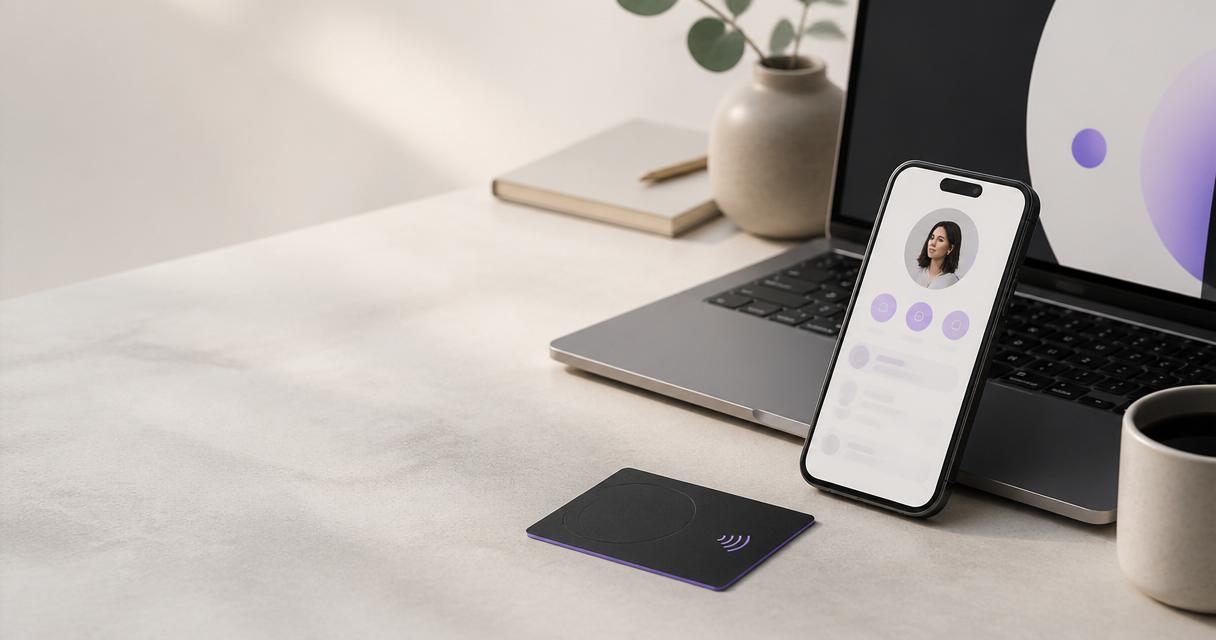
Most companies give new starters a laptop, a login and an email address on their first day. Business cards usually arrive weeks later, after someone remembers to order them. With NFC name cards and digital profiles, there is no reason for the gap. The profile can be ready before the start date, and the card can follow in the next batch. This guide shows how to add name cards to your onboarding checklist: the HR step, the details form, approvals, profile set-up, and the first-week hand-over. It is one of the guides behind our procurement checklist for ordering name cards in bulk.
Make it an HR checklist item
Business cards get forgotten because nobody owns them in onboarding. Fix that by adding one line to the HR checklist, next to the laptop and the email account: "Business card and profile requested". Name the person who actions it, usually the card owner in operations or marketing.
From then on, every new starter triggers the same short process. Nothing depends on a manager remembering to ask. If your HR system sends automatic tasks for new starters, add the card step there so it appears with the others.
The details form for new starters
Send every new starter the same short form before they start. Keep it to the fields that appear on the card and the profile:
- Name, exactly as it should be printed
- Job title
- Work email and work phone
- Office or location
- Optional: mobile number, photo, LinkedIn page, booking link
Ask for consent in the same form. A starter should agree before a photo or mobile number appears on a public profile. Using one form for everyone keeps formats consistent with the rest of the team.
Approvals
Two quick checks before anything is created:
- HR confirms the details. Name spelling and job title match the contract.
- The card owner checks the profile rules. Required fields are present, and nothing appears that the profile rules do not allow.
If the starter is joining a team with a different finish, such as metal cards for directors, the card owner records that for the order.
| Onboarding step | Owner | Timing |
|---|---|---|
| Add "Business card and profile" to the starter's checklist | HR | When the offer is accepted |
| Send the details form | HR | When the offer is accepted |
| Confirm name and title | HR | When the form comes back |
| Check profile rules and finish | Card owner | When the form comes back |
| Set up the digital profile | Card owner | Before the start date |
| Add the card to the next order | Card owner | Before the start date |
| Hand over the profile link and card | Line manager | First week |
| Brief on sharing and editing | Line manager or card owner | First week |
Set up the profile before the start date
The profile is what makes day one possible. A team digital name card profile can be set up as soon as the details are approved, without waiting for a physical card. On their first day the starter can share their details by link or QR code from their phone.
Set the profile up from the approved form, then cheque it on a phone. If you are on the Teams plan, which has a minimum of five seats, add the starter as a seat. If you buy individual cards, add the starter to the next order.
Ordering the physical card
Starters rarely arrive one at a time on a fixed schedule. Two common approaches:
- Top-up batches. Group starters and order their cards together at a regular point. Each card matches the team's approved design.
- Spare stock. If your cards do not print names, keep a few spares and assign one to the starter on day one.
Our guide to reordering name cards for new hires and lost cards explains both in more detail. If you are still choosing between per-seat profiles and one-time card plans, read Teams plan or individual cards: choosing for a company.
Remote and hybrid starters
Starters who work remotely still need to share their details, often more than office staff, because their first meetings are on video calls. The digital profile covers that from day one: they can share the link in a meeting chat or show the QR code on screen.
Send the physical card to the address in the details form when it is ready, rather than holding it at the office. Ask the starter to confirm it has arrived and that the tap works on their own phone. Record the delivery address in the register so a replacement goes to the right place.
Starters who join in groups
Graduate intakes, seasonal teams and new branch openings bring many starters at once. Treat them as one small rollout. Send the details form to everyone together, approve the list in one go, set up all the profiles before the start date and order the cards as one batch. Our guide to paper vs NFC name cards: total cost for a team shows how starters affect the yearly cost.
The first-week hand-over
In the first week, the line manager or card owner spends a few minutes with the starter:
- Show them their profile and cheque the details are right.
- Hand over the card if it has arrived, or explain when it will.
- Show how to share: a tap near the top of the other person's phone, or the QR code.
- Explain which profile fields they can edit themselves, if any.
- Tell them who to contact when something changes.
Then mark the step done on the HR checklist and add the card to the card register on the same day.
Plan the exit at the same time
Onboarding is also the right moment to set up the exit. When the card is recorded in the register, note what happens when the person leaves: the profile is changed to a team profile, handed to a successor or retired. Our guide to managing name cards when staff join or leave covers the leaver steps. Recording the default on day one means nobody has to work it out under pressure later.
What to tell line managers
Line managers do not need the whole process. Give them three points: their starter will have a profile on day one, the card follows in the next batch or from spares, and they should spend a few minutes in the first week showing the starter how to share it. Add the same points to your manager onboarding notes so new managers learn them too.
Common onboarding mistakes
- No owner for the card step. Starters wait weeks because nobody asked.
- Free-text details. Titles and phone numbers arrive in different formats.
- No consent cheque. A photo or mobile number goes public without agreement.
- Waiting for the card. The profile could have been shared from day one.
- No register entry. Nobody knows which card the starter has when they leave.
Frequently asked questions
Can a new starter have a name card on their first day?
Yes, as a digital profile. Set it up from the approved details form before the start date. The physical card follows in the next batch, or from spare stock if your cards do not print names.
Who should own name cards in onboarding?
HR adds the step to the checklist and sends the details form. The card owner sets up the profile and orders the card. The line manager handles the first-week hand-over.
What details should the form ask for?
Name, job title, work email, work phone and office, with optional mobile, photo and links. Ask for consent for anything personal in the same form.
Do we need to order a card for each starter separately?
No. Group starters into top-up batches against the approved design, or use spare cards if names are not printed.
How does the Teams plan fit onboarding?
Add the starter as a seat. The Teams plan is billed per seat and has a minimum of five seats.
What happens to the card when the starter later leaves?
Follow your leaver default: change the profile to a team profile, hand it to a successor or retire it. Record the default when the card is first issued.
Next step
If your onboarding checklist does not have a name card step yet, add one this week. For the cards themselves, request a bulk quote for team digital name cards, or see the team digital name card options first.