Managing Meishi Business Cards When Staff Join or Leave
By Wholesale Meishi Business Cards Editorial Team | Published | Updated
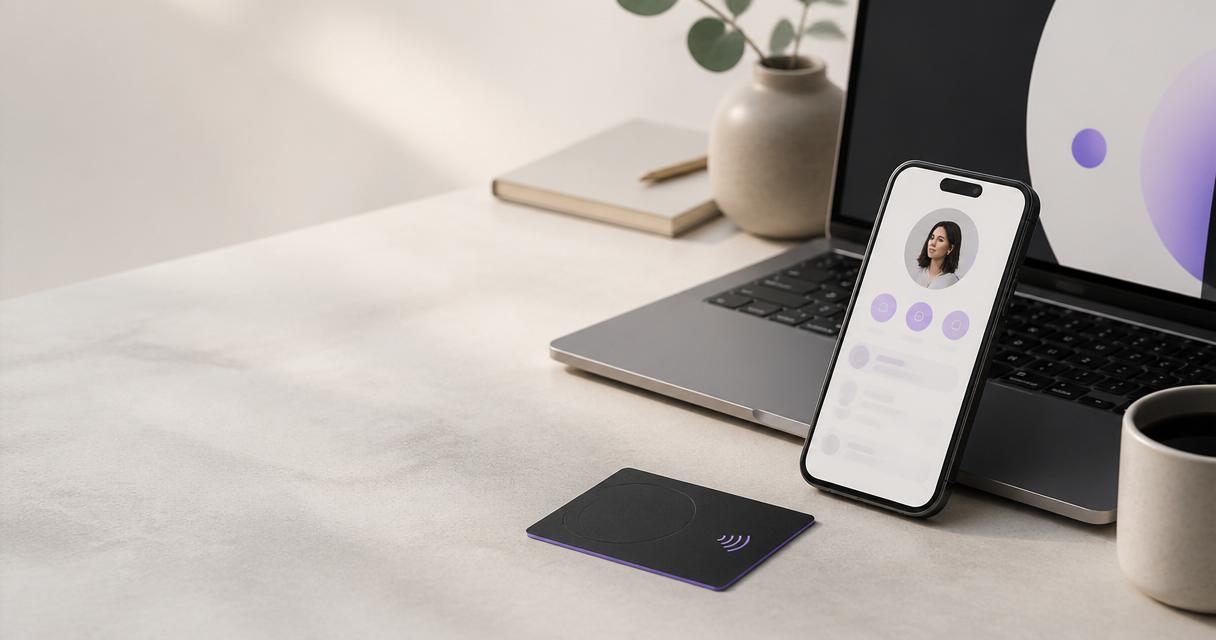
Staff turnover is the point where paper meishi business cards cost the most. A box of printed cards with a former employee's name on it goes in the bin, and every promotion or new mobile number means another print run. This guide explains how a team that has ordered bulk NFC meishi business cards can handle joiners, movers and leavers without reprinting. It also covers what HR and the card owner should agree before the first change happens. It is one of the stage guides behind our procurement checklist for ordering meishi business cards in bulk.
Why staff changes are a card problem
Business cards are usually ordered once and then forgotten. The problems appear later:
- Leavers. Their remaining cards still carry a name, a direct line and an email. If those cards are handed out, customers contact someone who is no longer there.
- Movers. A promotion, a new title or a move to another office makes existing cards out of date on the day it happens.
- Joiners. New people wait for a separate print run, or receive cards that do not match the rest of the team.
With printed cards, each of these is a new order. With smart cards, most of them become a short edit.
What changes with smart meishi business cards
Each card in a bulk order has an NFC chip and a printed QR code. Both open an online profile, and the profile holds the contact details, not the card. Each profile is edited on its own, so the details behind a card can change after delivery. The card in the person's wallet stays the same.
That gives a team four options whenever someone's situation changes:
- Edit the profile. Change the title, phone number, email, photo or links. The card keeps working and shows the new details on the next tap.
- Hand the profile on. Replace the leaver's details with a team or successor profile, so cards already in customers' hands still lead somewhere useful.
- Change where the card points. To make a card open a different page, contact our support team.
- Retire the card. Collect the card and stop using it.
Joiner, mover and leaver at a glance
The table is a starting point for your own process. Adjust the owners to match how your organisation works.
| Event | Card action | Profile action | Who does it | Time needed |
|---|---|---|---|---|
| Joiner, cards in stock | Issue a spare card from the approved batch | Create a profile from the team template | Card owner, with HR | A short task once details are agreed |
| Joiner, no spare cards | Add to the next small reorder | Create the profile now and share it by link or QR code | Card owner | Profile the same day; card with the next batch |
| Promotion or new title | Keep the same card | Edit title, phone, email or links | The employee or the card owner, as agreed | One edit |
| Move to another office | Keep the same card | Update office address, phone and booking link | The employee or the card owner | One edit |
| Name change | Keep the card if the name is not printed; otherwise reorder | Update name and email | The card owner, with HR | One edit, plus a reorder if needed |
| Leaver, role replaced | Collect the card if your process hands cards on | Hand the profile to the successor or a team profile | HR and the card owner | Same day as other system access is removed |
| Leaver, role not replaced | Collect and retire the card | Change to a team profile or retire it | HR and the card owner | Same day as other system access is removed |
The column that matters most is the last one. A leaver's profile should change on the same day their email and other accounts are switched off.
When someone joins
Before their first day
- Add the joiner to your card register: name, role, office and card type.
- Collect their profile details with the same template as the rest of the team, so formats match.
- Agree what goes on their public profile, and ask before adding a photo or a mobile number.
Our guide to adding meishi business cards to employee onboarding turns these steps into one line on the HR checklist and a details form.
Ordering their card
Every card in a team order follows one approved design, so a joiner's card should match the batch already in use. Keep a record of the design, finish and plan from the original order. Then use a bulk quote request to add cards against the same specification. Teams that hire often group joiners and reorder in small batches rather than one card at a time. Our 30-day rollout plan shows how to build that reorder step in from the start.
Setting them up
Link the new card to the joiner's own profile. Test it with a tap and a QR scan on an iPhone and an Android phone. Then give them a short briefing on how to share it. A team digital meishi business card profile can be set up straight away, so a joiner can share their details by link or QR code before the physical card arrives.
When someone changes role
A promotion or a move is the simplest case. Edit the profile: new title, new number, new office, new booking link. Nothing needs reprinting, and the person keeps the card they already carry. Decide in advance who makes the edit. It can be the employee, their manager or a central owner. Without a named person, updates stall and the profile drifts out of date.
If the new role belongs to a different brand or business unit, cheque the brand rules first. Our guide to keeping meishi business cards on-brand across a team or franchise explains which details are locked and which each person can edit.
When someone leaves
A clear leaver process is the most important part of managing team cards. A card that still points to a former employee is a data problem and a customer-service problem.
Choose one default
Agree one default for leavers and write it down. The options compare like this:
| Option | What happens | When it suits |
|---|---|---|
| Edit to a team profile | The card shows team or company details instead of the person | Many cards are already with customers and should still lead somewhere useful |
| Hand to the successor | The profile is updated with the new person's details | Shared roles, such as a branch manager |
| Ask support to change the page | The card opens a different page, such as general enquiries | Client-facing roles with many cards in circulation |
| Retire the card | The card is collected and no longer used | Roles that are not being replaced |
On the last day
- Collect the physical card if your process hands cards on.
- Update or hand on the profile on the same day other system access is removed.
- Remove personal details the person no longer wants public, such as a mobile number or photo.
- Update the card register.
Leads and contacts
If your team uses lead capture or the CRM features on the Business Add-ons plan, agree who takes over the leaver's contacts before they go. Follow-ups then continue without a gap. The Teams plan also includes lead management across the team, which makes the hand-over easier to plan.
Offboarding and data retention
When someone leaves, two kinds of data need a decision. The first is the personal data on their public profile: name, photo, phone number and links. The second is any data collected through the profile, such as contact leads.
Treat both the same way you treat other staff data. Remove what is no longer needed, and keep only what you have a reason to keep. Agree how long leads stay in the dashboard before they are deleted or exported to your own systems. Make sure the leaver's details are not left on a profile that customers can still open.
Our privacy policy explains how we handle personal information and how long we keep it. Your own retention rules for staff and customer data still apply to anything you export. This note is general guidance, not legal advice.
Keeping a simple card register
A card register is a spreadsheet with one row per card. Record the holder, role, location, card type, date issued and status: active, handed on, re-pointed or retired. It takes minutes to keep up to date. It answers the questions that matter when someone leaves: which card did they have, where does it lead now, and who changed it.
Keep the register somewhere HR and the card owner can both reach, but not on a shared drive the whole company can edit. It holds names and contact details, so treat it like any other staff list.
Keep the register with the order specification and the approved design. When the card owner changes job, the next person has everything in one place.
Common mistakes
- No owner. If nobody is responsible for profile updates, leavers' cards keep showing old details.
- Waiting for a reprint that is not needed. Most changes are edits. Check before you order.
- Mismatched replacement cards. Without the original specification, a joiner's card may not match the team.
- Forgetting consent. Agree personal details on a public profile with the person they belong to, and remove them when they leave.
- Ignoring review and display cards. Branch Google review cards and stands also need checking when a location manager changes.
Frequently asked questions
Do we need to reprint cards when someone gets promoted?
No. Edit the profile linked to their card. The new title and details show on the next tap or scan, and the person keeps the same card.
What happens to a card when an employee leaves?
You choose one default in advance. You can change the profile to team or company details, hand it to a successor, ask our support team to make the card open another page, or retire it.
Can a returned card be given to someone else?
Yes. The profile behind the card can be updated with the new holder's details. This works best when the printed card does not carry the previous holder's name.
How do new starters get cards that match the team?
Keep the approved design and specification from the original order. Then request extra cards through a bulk quote so they are made to the same specification.
Can a new starter share their details before the card arrives?
Yes. Their profile can be shared by link or QR code as soon as it is set up.
What should we do with a leaver's contact leads?
Agree who takes them over before the person leaves, and decide how long they stay in the dashboard. Remove or export them according to your own data rules.
Next step
If you are planning a team order and want joiners and leavers handled without reprints, request a bulk quote with your headcount and expected hires. You can also compare bulk NFC meishi business card finishes first.